The Wyze
Sunday, 30/11/2025
How to add the council as a tenant and an occupier
Step 1. Access the Properties Tab 0:00
- Navigate to the left-hand side of the screen.
- Click on the Properties tab.
Step 2. Select Your Desired Property 0:11
- From the list of properties, select the property you want to manage.
Step 3. Go to the Contracts Tab 0:15
- Move to the top column and click on the Contracts tab.
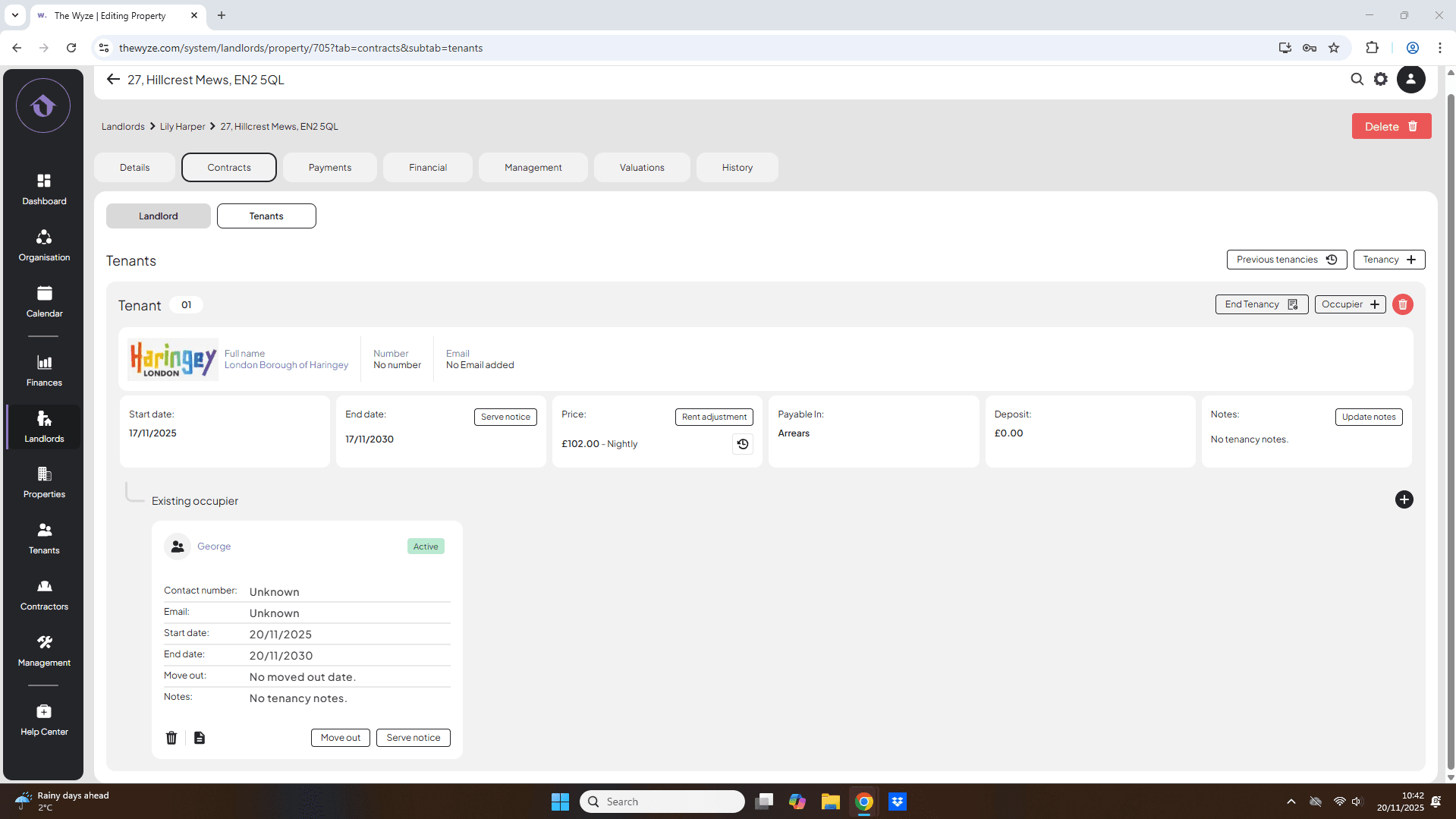
- Click on the Tenants option.
Step 4. Add a Tenancy 0:21
- On the right-hand side, click on Add Tenancy.
- Search for the council required in the ‘Search a tenant’ section. Your councils will be already be inputted.
- Input the tenancy details.
- Select save.
Step 5. Add an Occupier 1:17
- On the right-hand side, select Add Occupier.
Step 6. Add Occupier Details 1:27
- If the occupier is not already listed, click the Add button to input their details.
- If already added, search and select the occupier.
- Infill the remaining details.
- Select save.
Step 7. Review the Added Tenant and Occupier 1:54
- Your tenant and occupier should reciprocate the same layout as the image above.