The Wyze
Sunday, 30/11/2025
How to add a tenant for a private rental and adjust their rent
Step 1. Access the Properties Tab 0:00
- Navigate to the left-hand side and click on the Properties tab.
Step 2. Select Your Desired Property 0:10
- Choose the property for which you want to add a tenant.
Step 3. Go to the Contracts Section 0:13
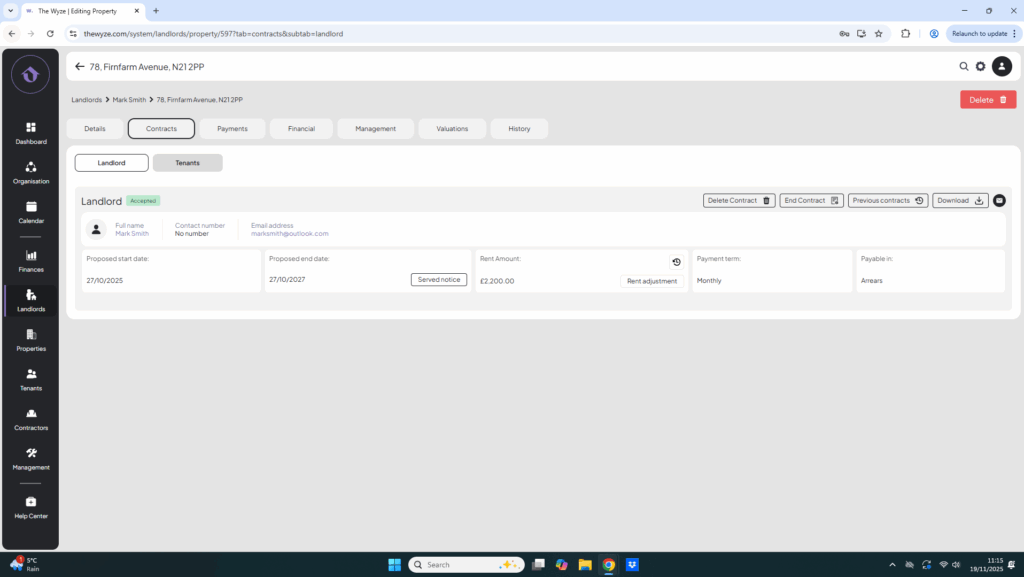
- Move to the top tab and select the Contracts section.
Step 4. Select Tenants 0:18
- Click on the Tenants section.
Step 5. Add The New Tenant 0:24
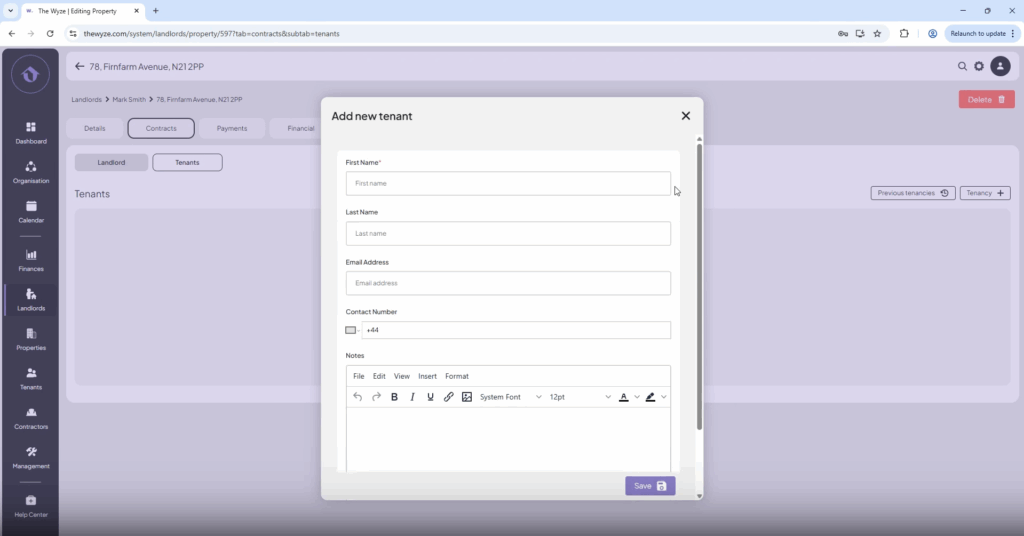
- On the right-hand side, click on Add Tenancy.
- Click the Add button on the right-hand side.
- Fill in the tenant’s details.
- Click Save.
Step 6. Add The Tenancy 0:59
- Click on Add Tenancy again on the right-hand side.
- Search for the tenant by name.
- Enter all tenancy details.
- Select save.
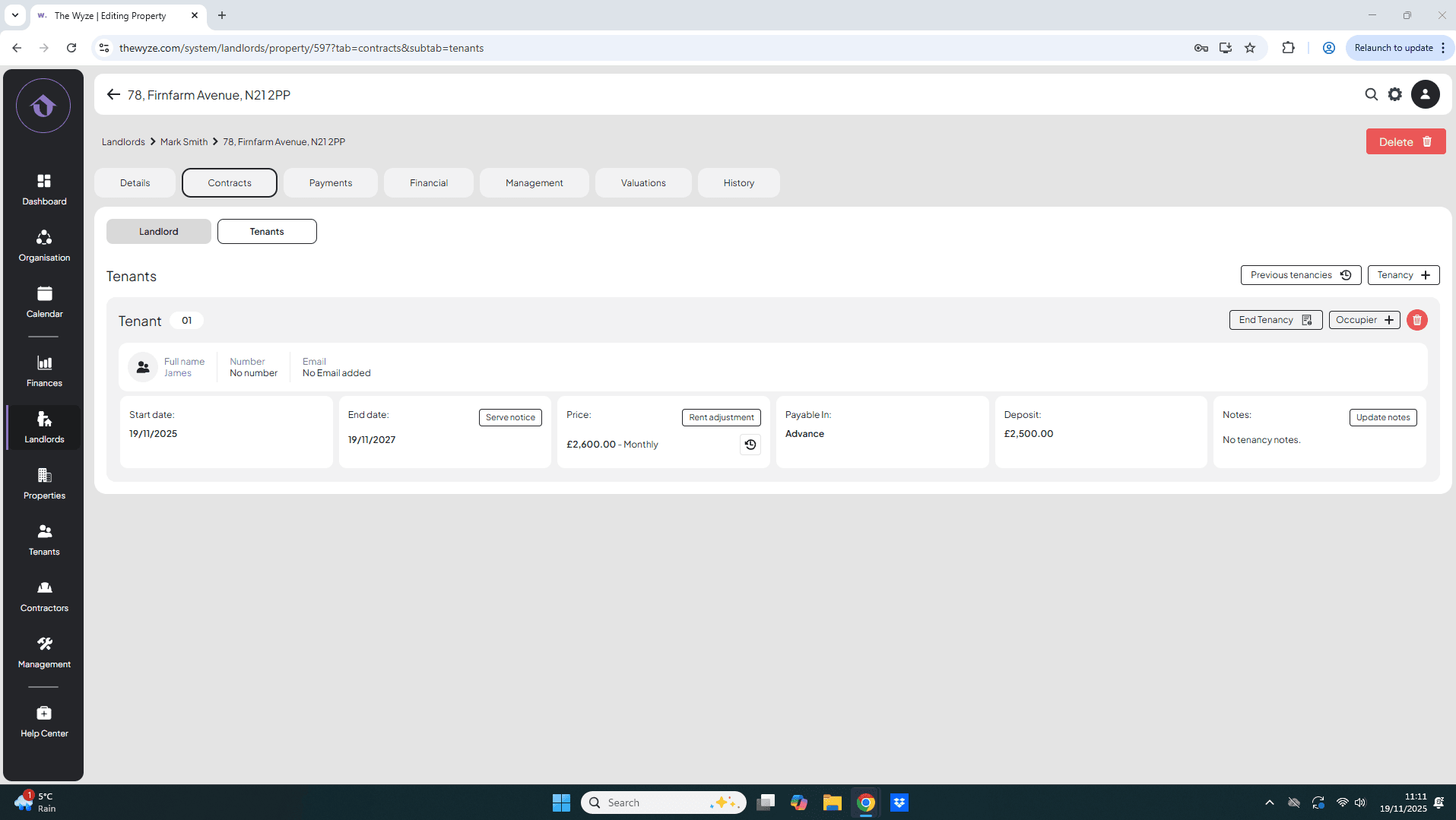
Step 7. Review Tenant Information 1:43
- Confirm that tenant details are displayed.
Step 8. How To Adjust Rent if Necessary 2:05
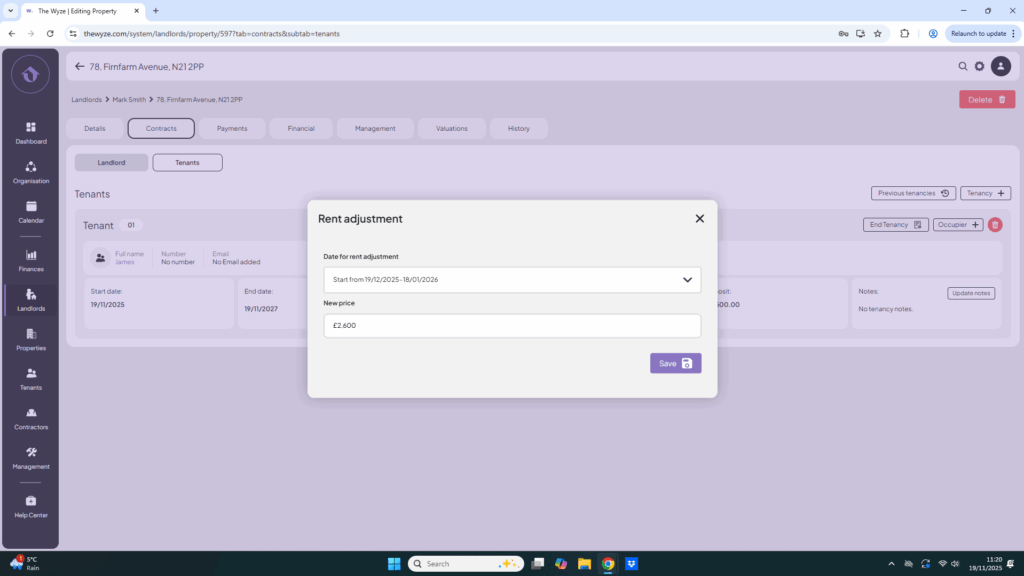
- If a rent adjustment is needed, click on the Rent Adjustment button under the price section.
- Select the adjustment date.
- Enter the new rental price.
- Click Save.
Step 9. View Rent Adjustment History 2:34
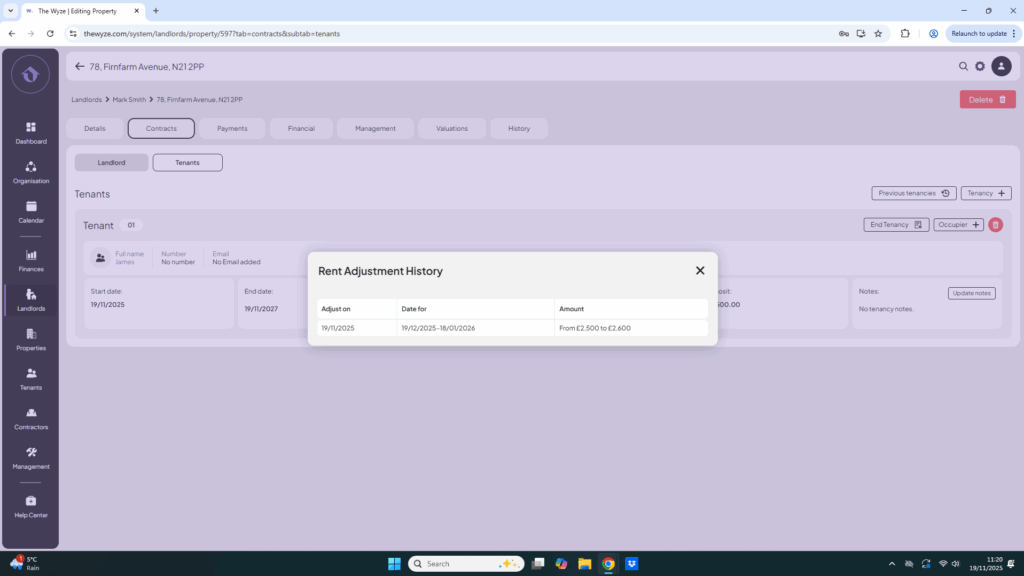
- To check the history of rent adjustments, click on the history icon.
- Review the details of the rent adjustment made.