The Wyze
Tuesday, 11/11/2025
How to add an inspection to a property
Step 1. Access the Properties Tab 0:00
- Start by navigating to the left-hand side of the screen.
- Click on the Properties tab.
- Select the desired property from the list.
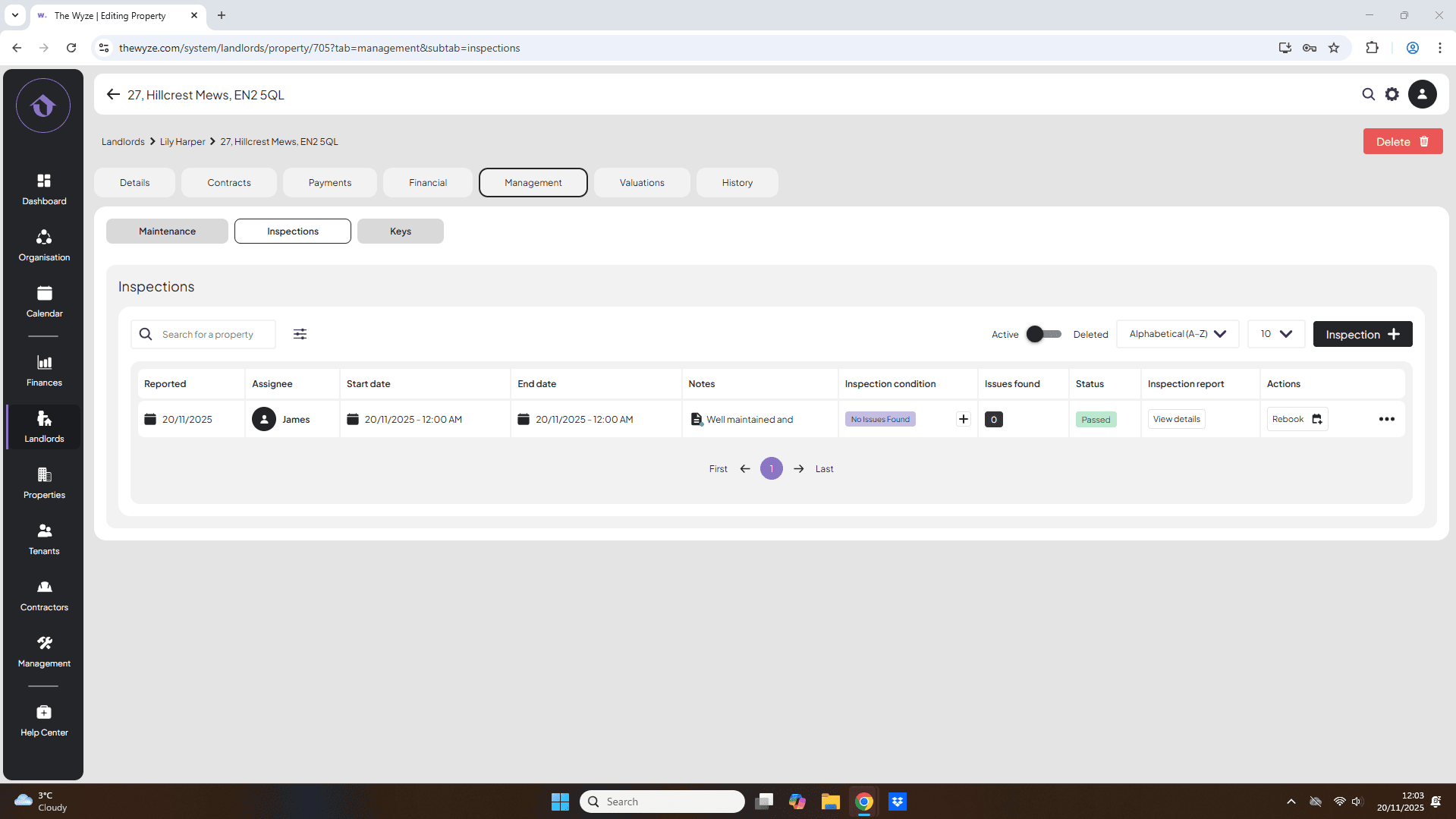
Step 2. Navigate to the Inspections Tab 0:15
- From the top column, locate the Management tab.
- Click on the Inspections tab.
- On the right-hand side, click on Add Inspection.
Step 3. Add Inspection Details 0:26
- Infill the details.
Step 4. Assess Each Area of the Property 0:46
- Select the + button to begin adding the assessments of each area of the property.
- Repeat this for all applicable areas of the property.
- Select save inspection.
Step 5. Confirm Inspection Outcome 1:54
- After saving, determine whether the inspection has passed or failed on the right-hand side.
- Select Confirm.
Step 6. Review Inspection Report 2:09
- View the details of the inspection report by selecting view details.