The Wyze
Friday, 28/11/2025
How to add and update certificates to your property
Step 1. Access the Properties Tab 0:00
- Navigate to the left-hand side and click on the Properties tab.
- Select your desired property.
Step 2. Locate the Certificates Section 0:19
- Scroll down past the property information.
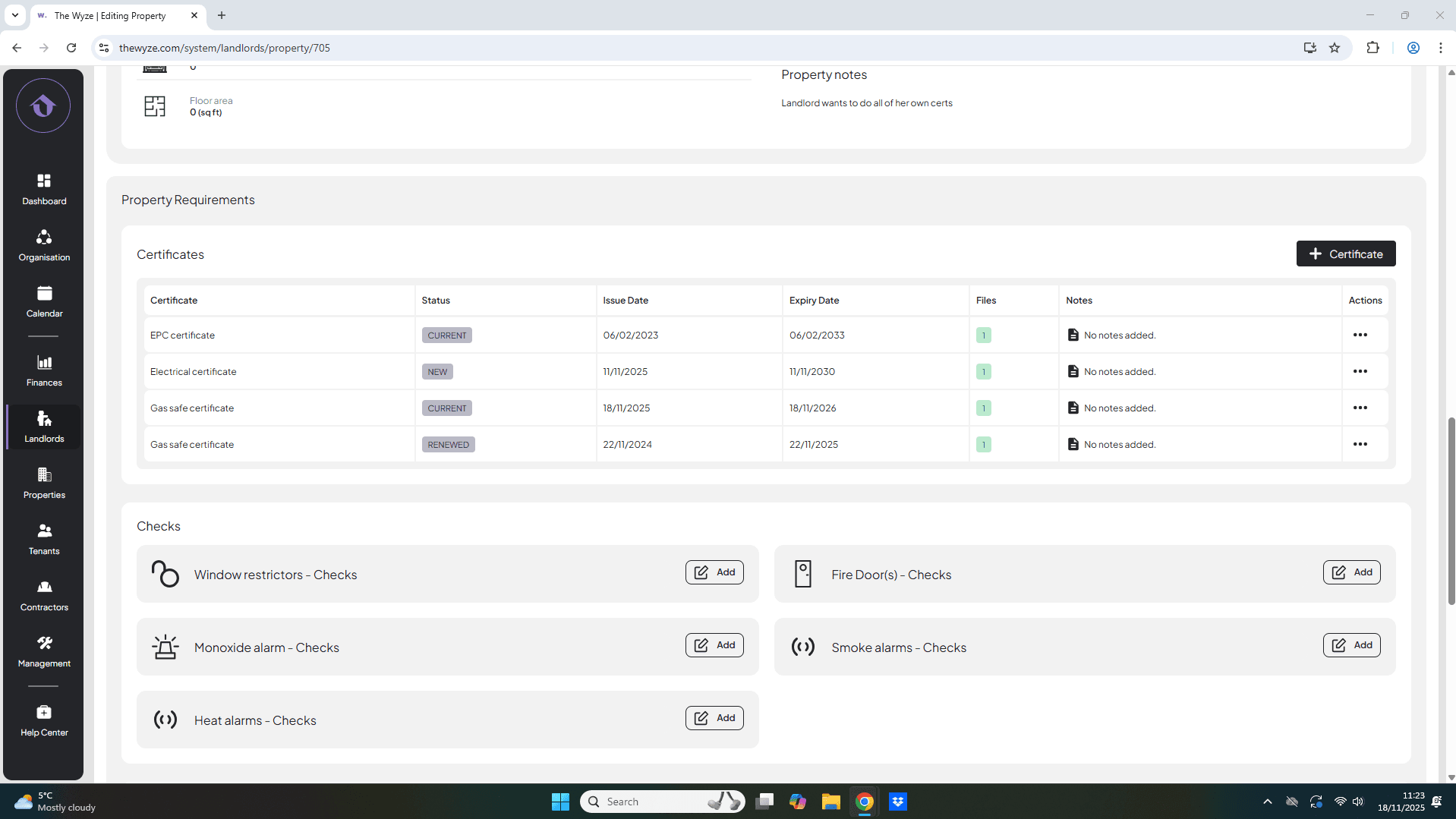
- Find the Property Requirements section.
Step 3. Add a New Certificate 0:25
- Click on Add Certificate on the right-hand side.
- Input the certificate information.
- Click Save.
Step 4. View Your Added Certificate 1:03
- Your new certificate will appear with a status.
- Click the green icon below ‘Files’ to view the certificate in PDF format.
Step 5. Add Additional Certificates 1:41
- Repeat the process to add more certificates.
Step 5. Update Existing Certificates (if necessary) 3:15
- To update a certificate, hover over the three dots under Actions, select ‘Renew Certificate’.
- Infill the information and select save.
Step 6. Confirm Status Changes 3:39
- Check that the status of the renewed certificate has changed to Renewed.
- Ensure the current certificate status is updated to Current.