The Wyze
Thursday, 27/11/2025
How to add checks, utilities, and meter readings to your property
Step 1. Access the Properties Tab 0:00
- Navigate to the left-hand side and select the Properties tab.
Step 2. Select Your Property 0:11
- Choose the specific property you want to manage.
- Scroll past the property information and requirements.
Step 3. Add Checks to the Property 0:23
- Click the Add button to start adding checks.
- For each check:
- Drag in the relevant image
- Click Save.
- Repeat for all required checks.
Step 4. View and Manage Images 1:03
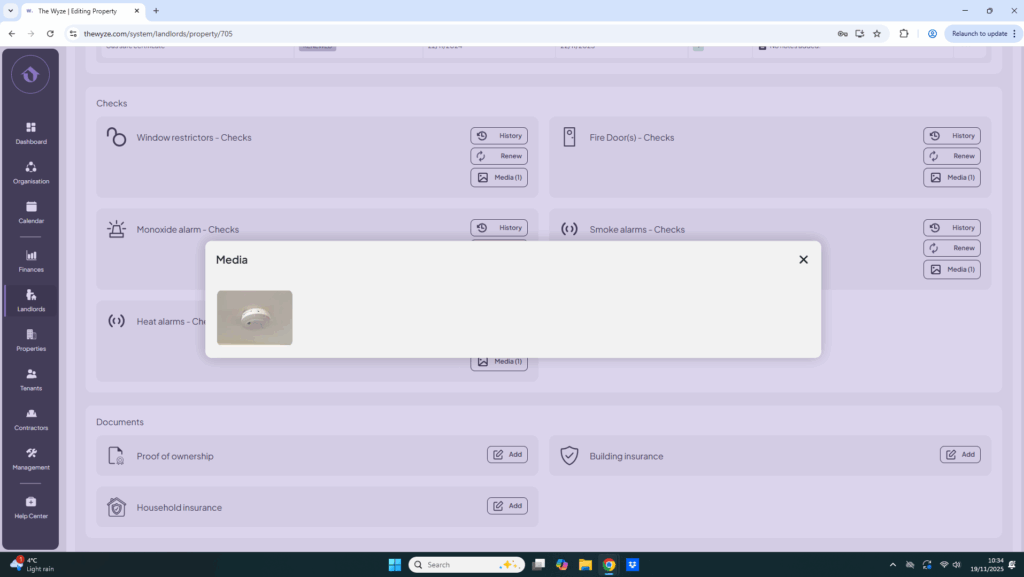
- To view an image, click the Media button.
- Click on the image to enlarge it.
- If you need to update an image, click the Renew button.
- Drag in the new image and click Save.
Step 5. Check History of Added Checks (if necessary) 1:29
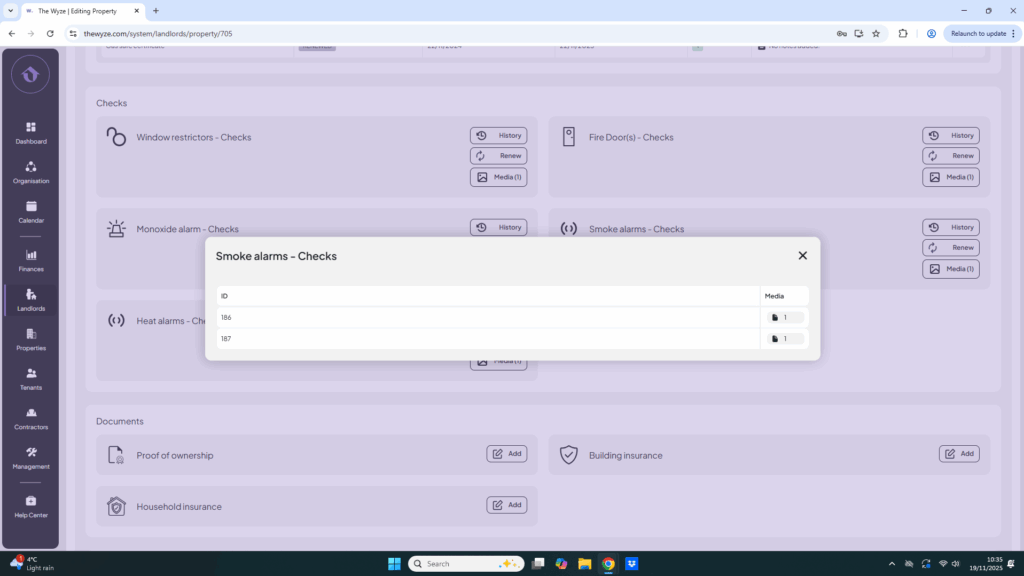
- Click the History button to view previously added checks.
Step 6. Add Documents 1:46
- Scroll down to the relevant section.
- Click the Add button and drag in your documents.
Step 7. Add Utilities Information 1:56
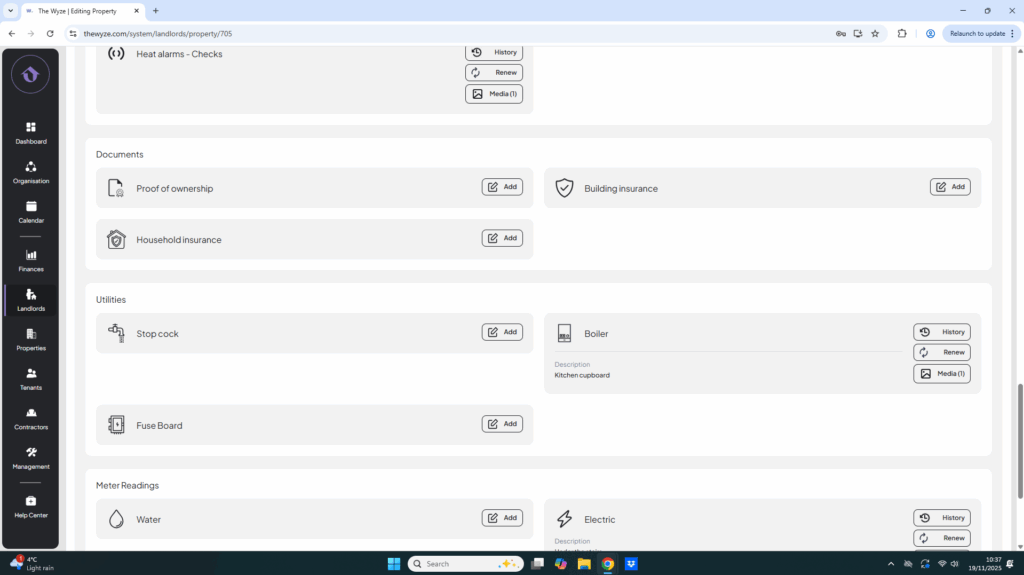
- Click Add under the utilities section.
- Drag in an image.
- Infill the information.
- Click Save.
Step 8. Add Meter Readings 2:25
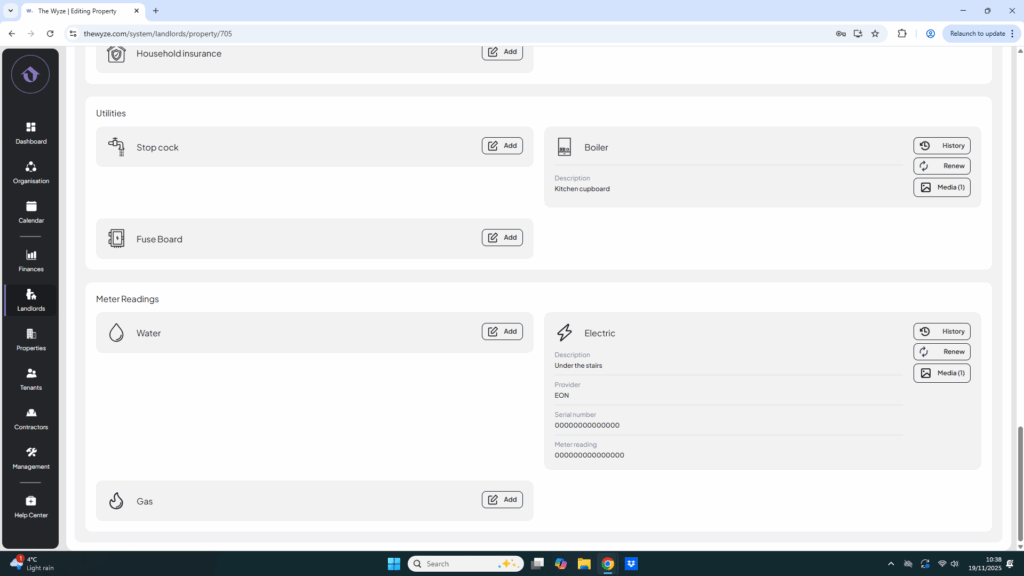
- Scroll down to the meter readings section.
- Click Add for the meter reading.
- Drag in an image of the meter.
- Infill the information.
- Click Save.