The Wyze
Tuesday, 11/11/2025
How to manage keys for properties
Step 1. Access the Properties Tab 0:00
- Start by navigating to the left-hand side of the screen.
- Select the Properties tab.
- Select your required property.
Step 2. Go to the Management Page 0:14
- Move to the top column and select the Management page.
- Select ‘Keys’ located just underneath the management options.
Step 3. Add a New Key 0:26
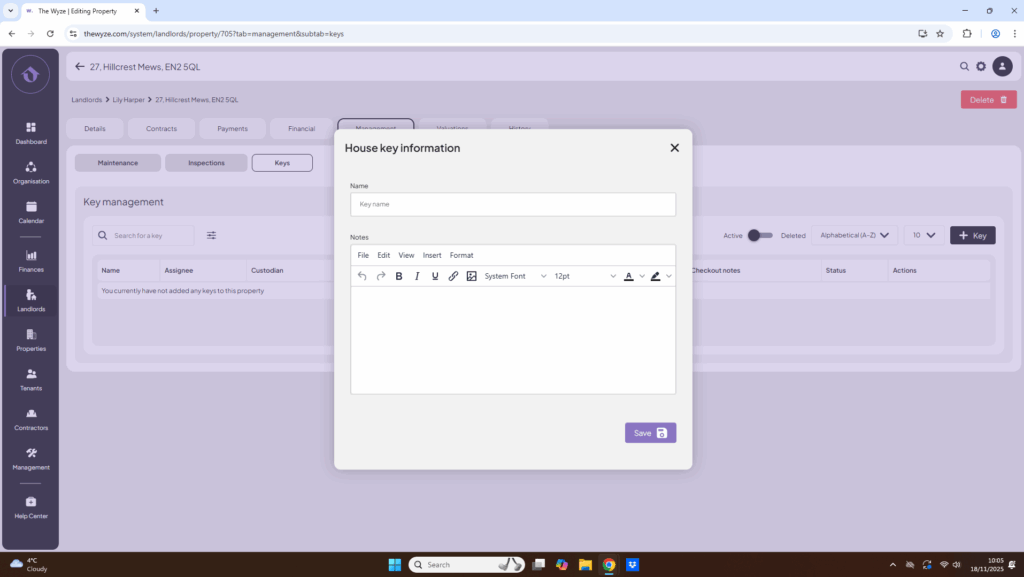
- Click on Add Key on the right-hand side.
- Input your key name or number.
- Select Save to store the key.
- If you have more sets of keys, repeat the process by adding another key with the same number.
- Click Save again.
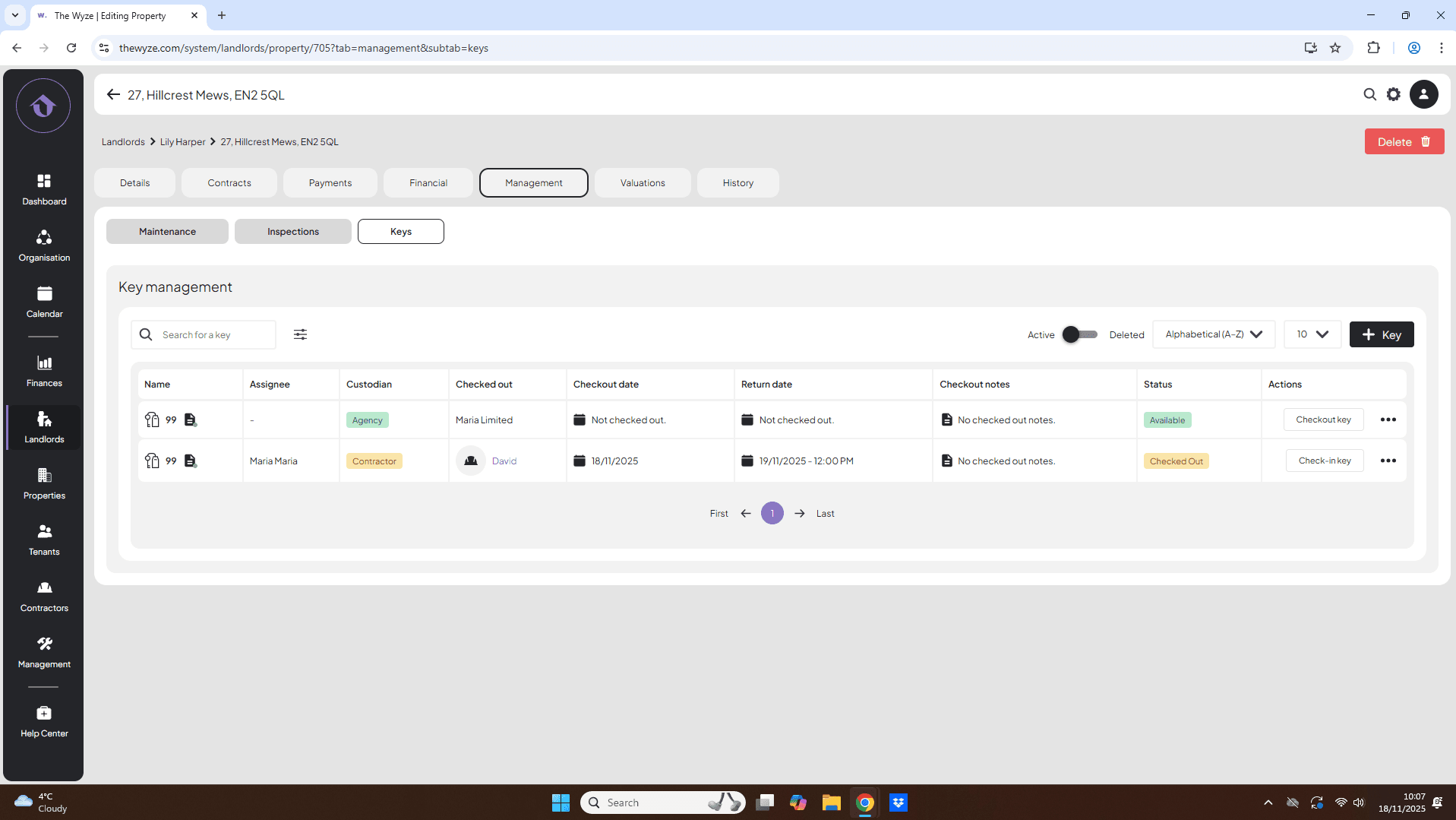
Step 4. Check Out a Key 0:55
- To check out a key, select Checkout Key on the right-hand side.
- Choose a user type.
- Search for the contractor’s name.
- Specify when the keys are due back.
- Click Save.
Step 5. Check In a Key 1:39
- Once the keys are returned, select Check In Key under actions.
- Confirm that you have the key by selecting Accept.