The Wyze
Tuesday, 25/11/2025
How to pay landlord rent
Step 1. Access the Properties Tab 0:00
- Navigate to the left-hand side and select the Properties tab.
- Choose your desired property.
Step 2. Go to the Payments Tab 0:13
- Move to the top column and select the Payments tab.
Step 3. Initiate Payment to Landlord 0:28
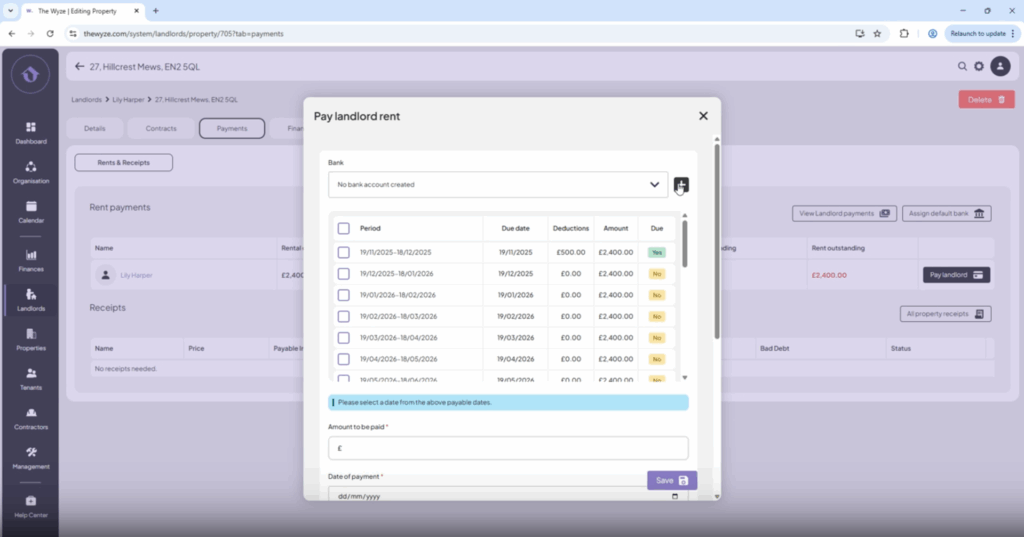
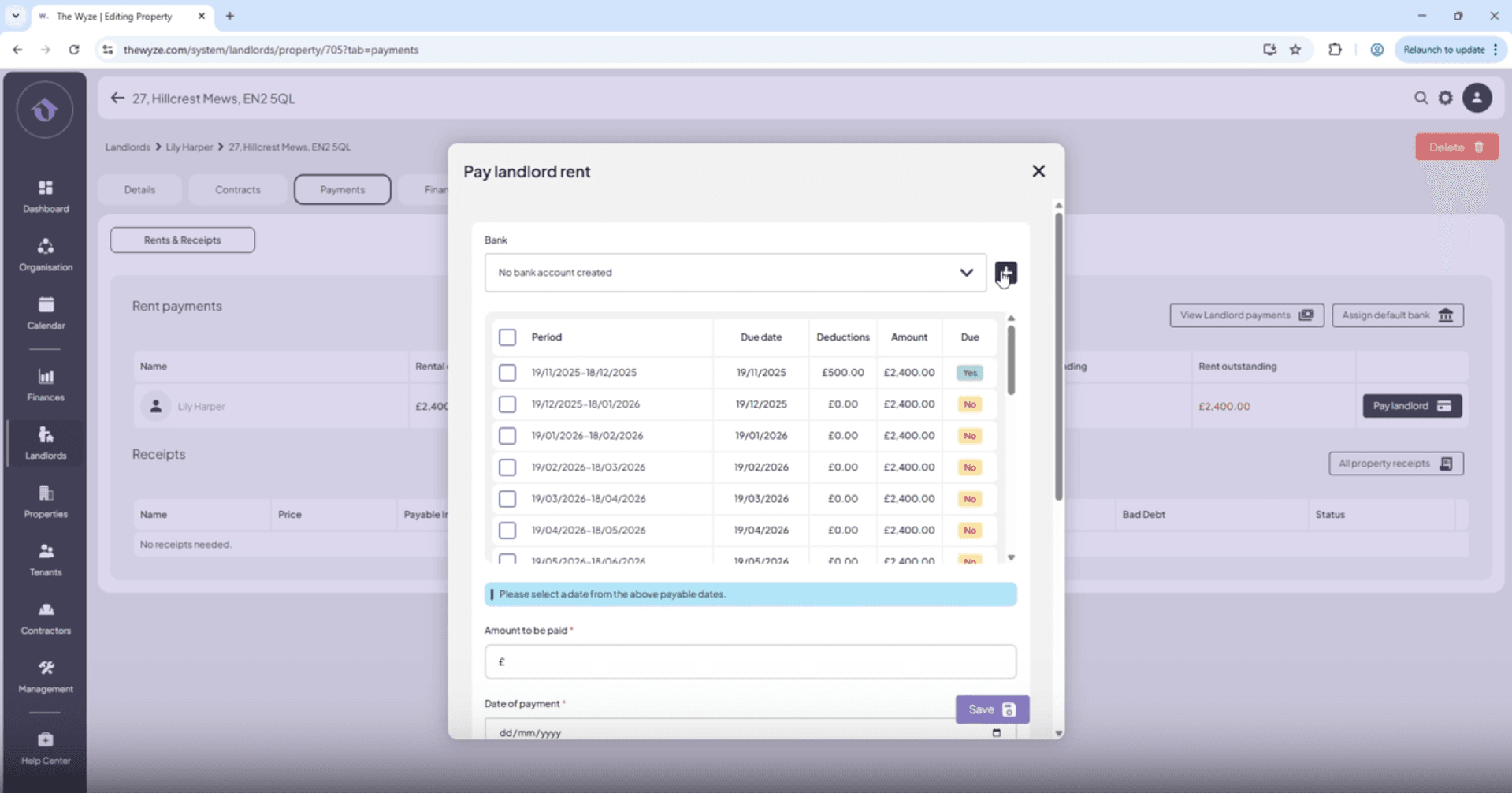
- Click on Pay Landlord.
- If no bank account is created for the landlord, click the Add button on the right-hand side.
- Enter the landlord’s bank account information.
- Click Save.
Step 4. Process the Rent Payment 1:04
- Select Pay Landlord again.
- Select the payment period due.
- Note any deductions.
- If there are any deductions the adjusted rent amount due will be calculated automatically.
- Continue to infill all payment details.
- Click Save.
Step 5. Confirm Payment Status 1:41
- Check that the rent outstanding is now zero.
Step 6. View Landlord Payments 1:56
- Select View Landlord Payments to see details of the payment made.
Step 7. Email Confirmation of Payment 2:14
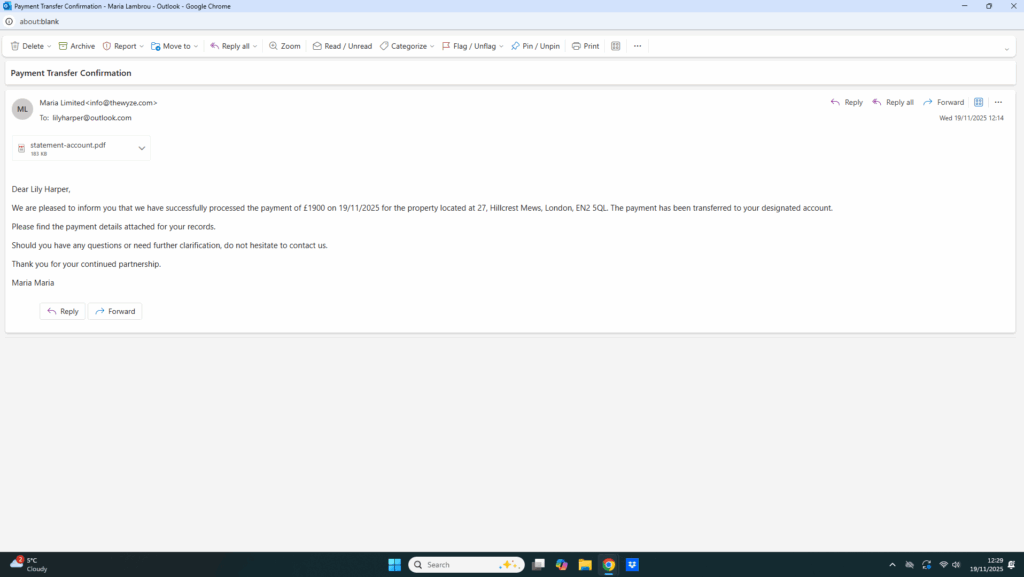
- An email will be automatically sent to your chosen account and your landlords email address.
- The email includes a statement of account.