The Wyze
Tuesday, 25/11/2025
How to receipt and delete rent for a private tenancy
Step 1. Access the Properties Tab 0:00
- Open the application and navigate to the left-hand side.
- Click on the Properties tab.
- Select your desired property.
Step 2. Navigate to the Payments Tab 0:17
- Move to the top column and click on the Payments tab.
- Observe the landlord payments at the top and tenant payments at the bottom.
- Check the outstanding rent for the tenant.
Step 3. Receipt the Rent 0:40
- Click on ‘Receipt Rent‘ for the tenant.
- Select payment period and fill out details.
- Select save.
Step 4. View All Property Receipts 1:07
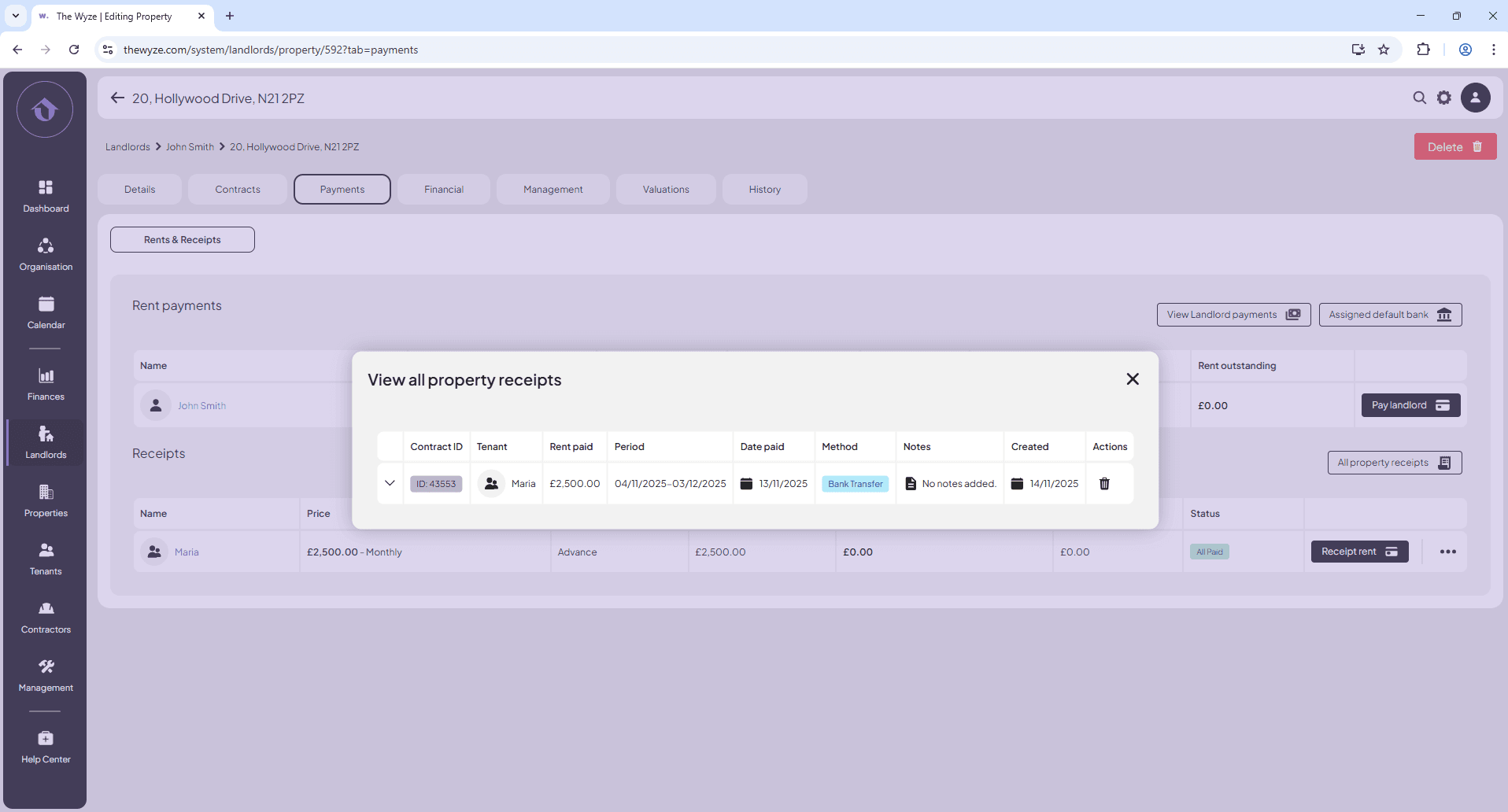
- To view the payment, go to the right-hand side and select ‘All Property Receipts‘.
Step 5. Delete Incorrect Payments (if necessary) 1:30
- If there are mistakes, delete the payment by clicking the bin icon on the right-hand side.
- Confirm the deletion.
Step 6. Re-enter Correct Payment Information 1:54
- Repeat step 3 to correct the payment details.
- Select save.
- Check ‘All Property Receipts‘ again to ensure the updated payment information is displayed correctly.