The Wyze
Tuesday, 25/11/2025
How to receipt and delete rent from the council
Step 1. Access the Properties Tab 0:00
- Open the application and navigate to the left-hand side.
- Click on the Properties tab.
- Select the desired property.
Step 2. Navigate to Payments 0:18
- After selecting the property, go to the top tab.
- Click on Payments.
Step 3. Identify the Landlord and Tenant 0:23
- Confirm the Landlord is displayed in the top section.
- Ensure the Tenant (e.g., Haringey) is shown in the bottom section.
Step 4. Receipt the Rent Payment 0:37
- Click on Receipt Rent on the right side.
- Fill in the payment details.
- Select save.
Step 5. View Payment Receipts 1:14
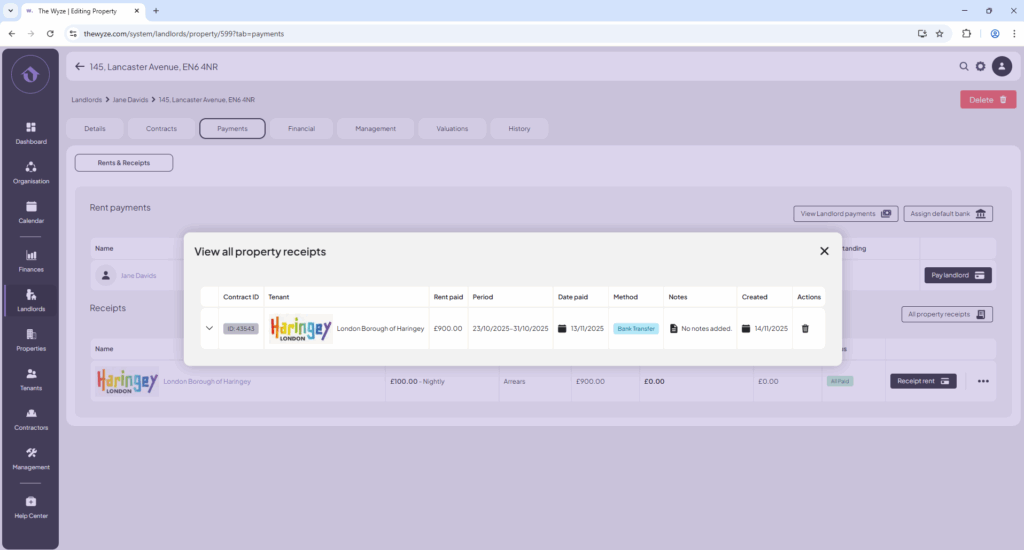
- To view the payment made, select ‘All Property Receipts‘.
8. Delete Incorrect Payments (if necessary) 1:33
- If a payment was received incorrectly, click the drop-down arrow next to the payment.
- Choose to delete either a single payment or all payments:
- For a single payment, select the specific payment.
- For all payments, tick the box for all receipts and select Delete.
- Confirm the deletion action.
- If you made an error in inputting the payment date or details, repeat step 5 to correct it.