The Wyze
Monday, 01/12/2025
How to add and start a landlord contract
Step 1. Access the Landlord Tab 0:00
- Navigate to the left-hand side menu.
- Click on the Landlord tab.
Step 2. Select Your Landlord 0:14
- Find and select the landlord you need.
- Ensure that the valuation and property have been added.
- The landlord status is ‘pending‘ a contract.
Step 3. Access Properties Under the Landlord 0:30
- Click on the landlord’s name to view their properties.
- Select your desired property.
Step 4. Go to the Contracts Tab 0:39
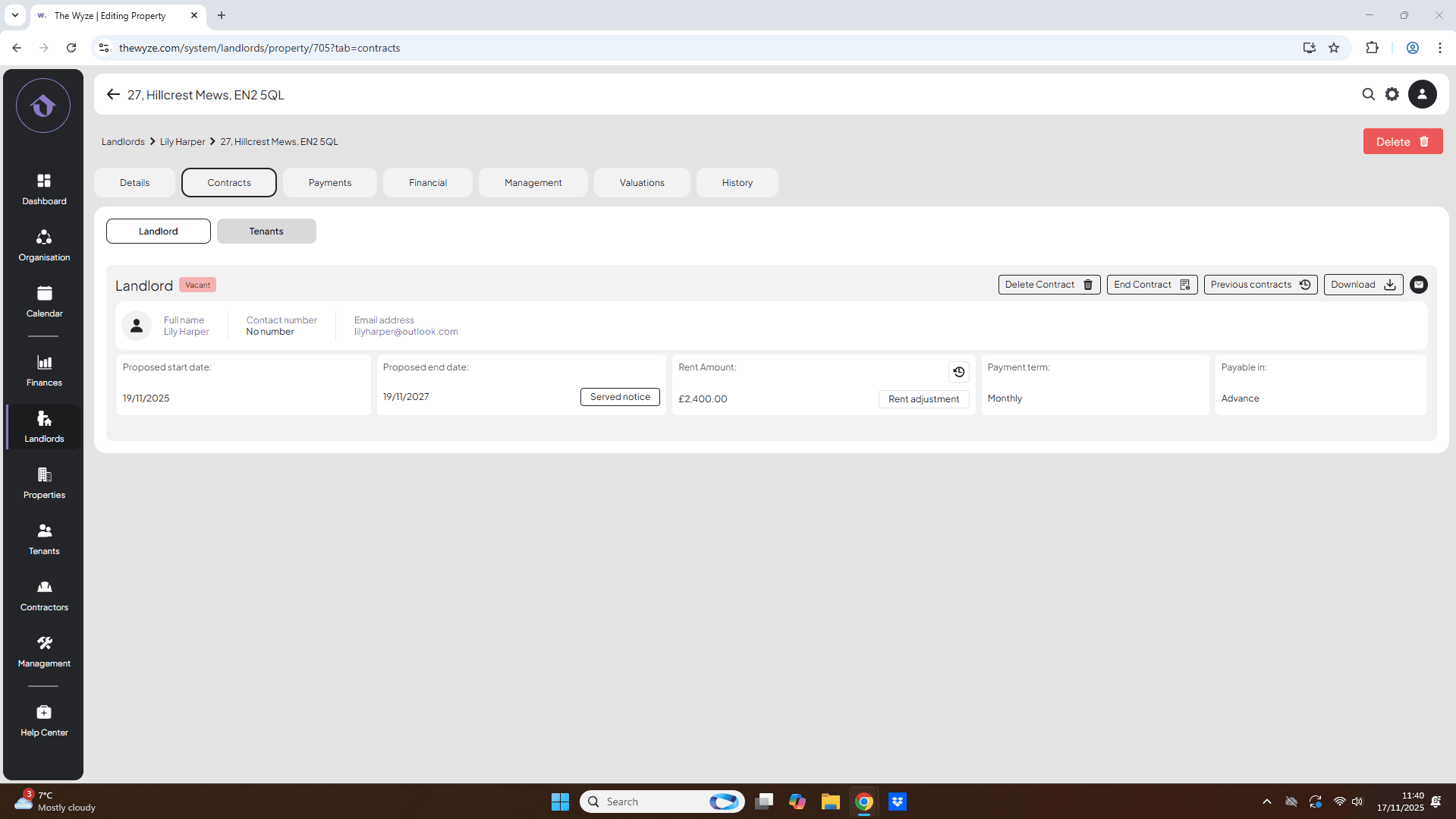
- Navigate to the Contracts tab at the top of the page.
Step 5. Create a New Contract 0:50
- Ensure you are in the landlord section of the contracts tab.
- Click on ‘New Contract +‘ on the right-hand side.
- Infill the contract details.
- Select save.
Step 6. Update Contract Status After Signing 1:32
- Once the landlord has signed your contract, select ‘Landlord Accepted’ to begin the contract on Wyze.
- The contract status will change to Vacant, indicating that it has started.
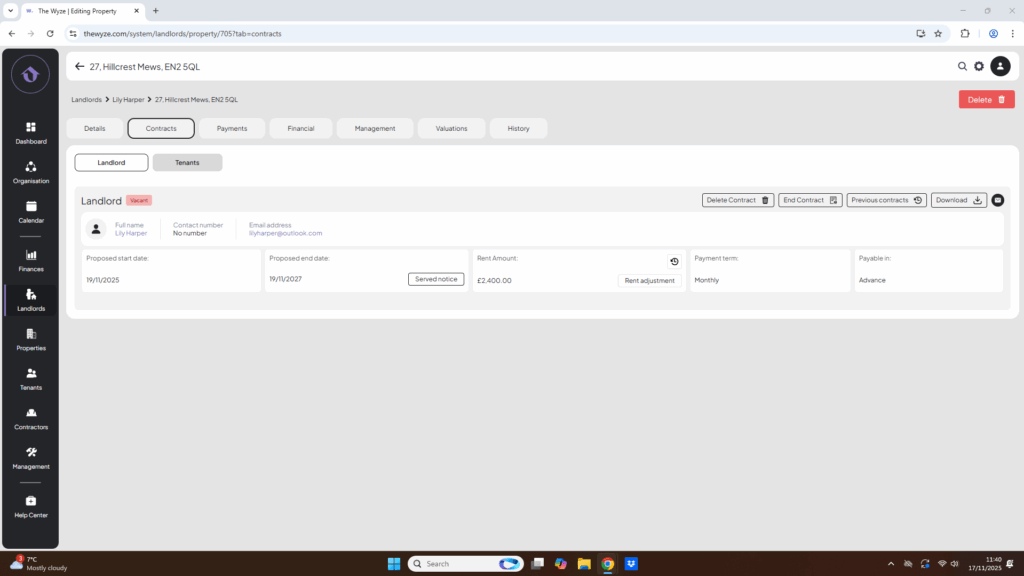
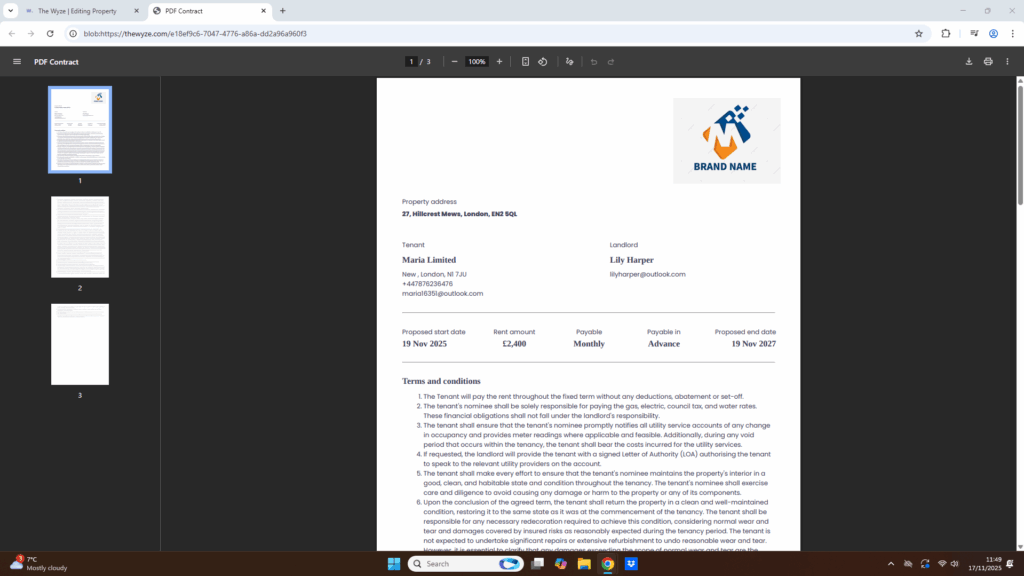
Step 7. Download the landlord contract 1:48