
The Wyze
Tuesday, 02/12/2025
How to view, edit, and manage contractors
Step 1. Access the Contractors Tab 0:00
- Navigate to the left-hand side.
- Click on the ‘Contractors’ tab to view an overview of all contractors.
Step 2. View full details 0:47
- ‘Details’ – overview of amount of jobs, completed jobs, and cancelled jobs
- ‘Jobs’ – a list of maintenance jobs and their statuses
- ‘Financial’ – overview of all money paid to contractor, profit/loss on contractors jobs
- ‘Bank info’ – ability to edit, delete, add contractors bank info
- ‘Keys’ – keep track of keys that your contractor has checked out and manage when they are due back
Step 3. Email the Contractor 1:44
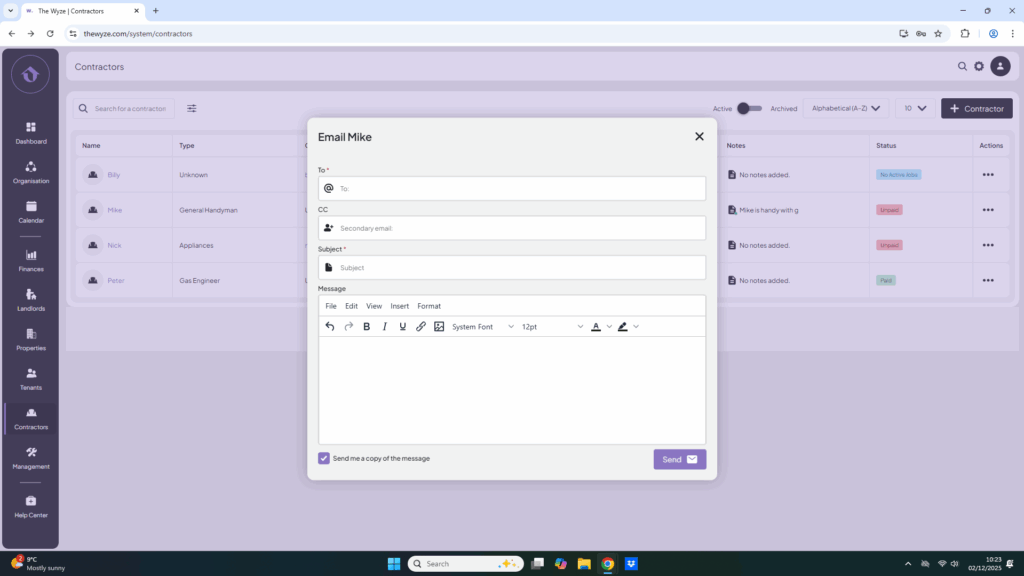
- Select ’email contractor’ and infill the information as needed.
- Select send.
Step 4. Edit Contractor Information 2:41
- Select edit contractor.
- Change the details necessary and select save.
Step 5. Archive a Contractor (if necessary) 2:55
- If you will no longer be using a contractor, select archive contractor.
- You are still able to access their details by clicking the swich to change from the view of active contractors to archived contractors.